Create a workspace and invite people
You get a workspace when you sign up. New workspace, in the account menu, creates more, and the same menu switches between them.
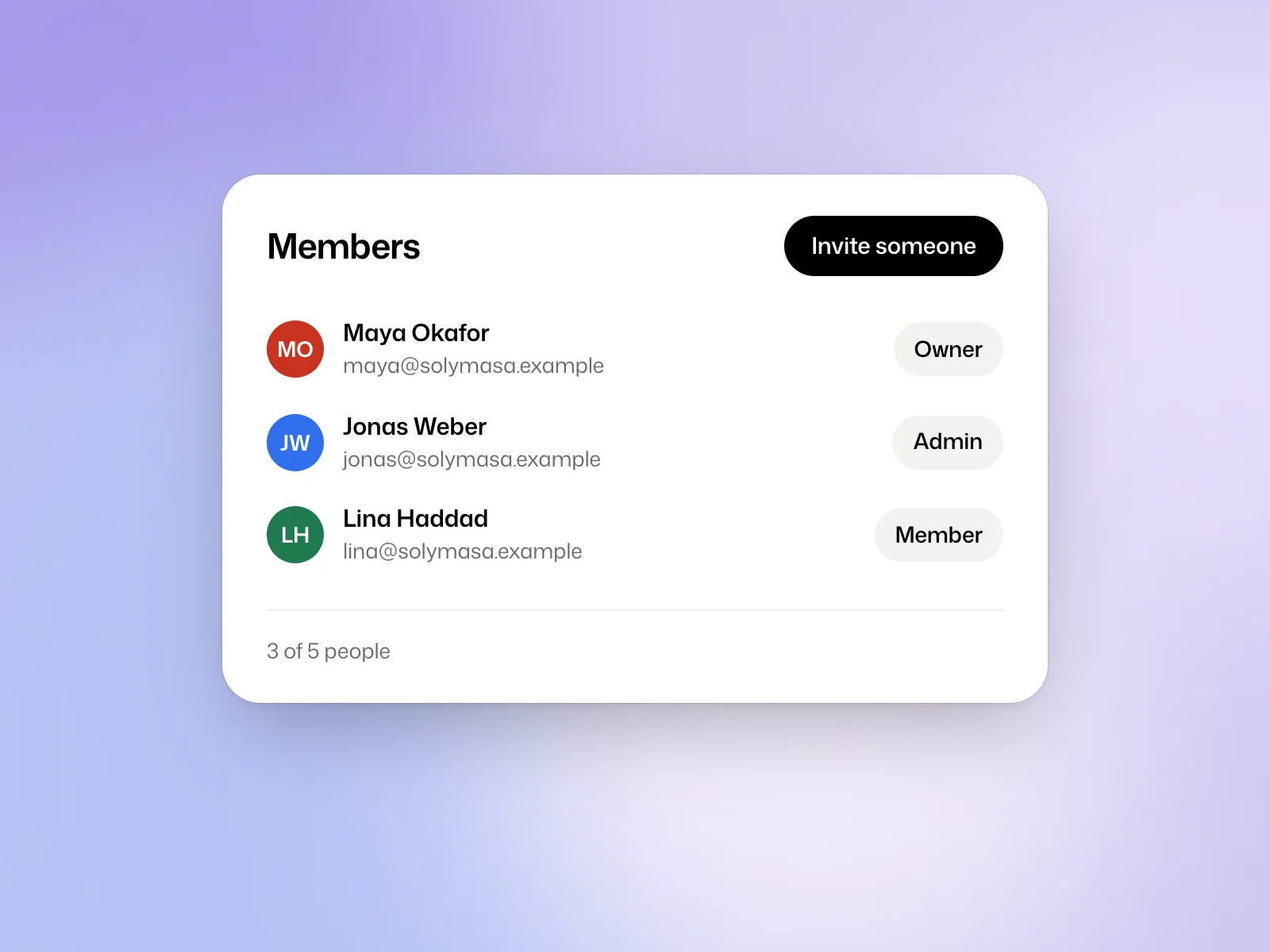
To invite someone, open Settings, then Members, then Invite someone. The invitation goes by email and stays open for seven days. A workspace holds up to 5 people, pending invitations included, whatever the plan. Inviting someone costs nothing.
Choose a role
Choose Member for someone who needs to work on projects. Owner and Admin can also invite people and manage the workspace.
Who pays for what
The person who starts a piece of work pays for it, from their own plan and credits. If you change a colleague’s film, the change comes out of your credits.
A film follows the plan of the person who made it, for its maximum length, its closing seconds in Kinory’s name and how long it is kept. If your plan cannot make that film, you can watch and download it, and the studio tells you which plan you need to change it.
Brand kits belong to the workspace. Any member can use any kit, and a kit counts towards the limit of the person who created it.
One account per person
Kinory opens one account per person, so that welcome credits are given once.
When a second account is in doubt, the studio asks for a bank card with Verify your account. The card is checked with the bank and never charged. An account found to be a duplicate is blocked, and its page lets you contact the team or appeal.
Try it yourself
Before inviting a teammate, decide whether they need to manage members or just work on projects. Check the role and current workspace before you send the invitation.
 Read nextShare a project for reviewChoose a viewing, commenting or editing link and revoke it when the review is over.